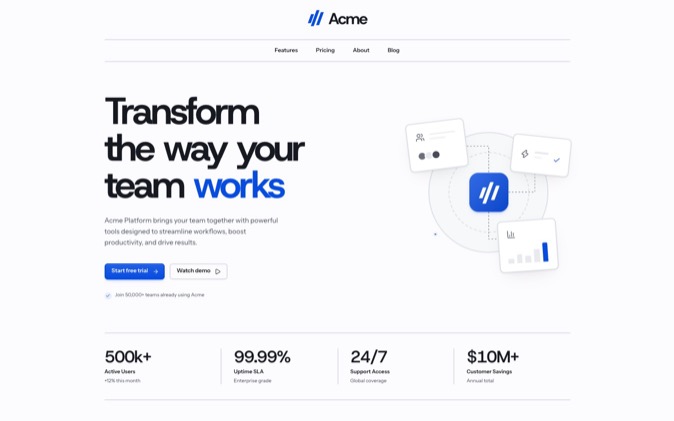
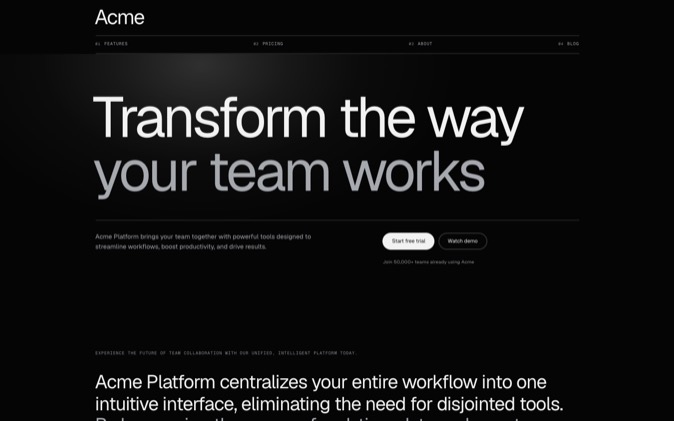
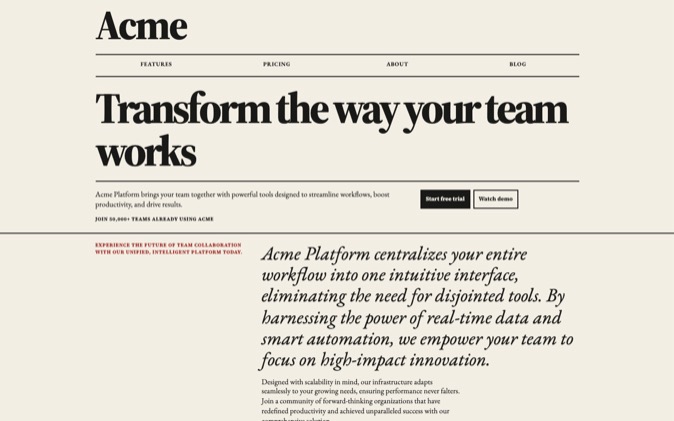
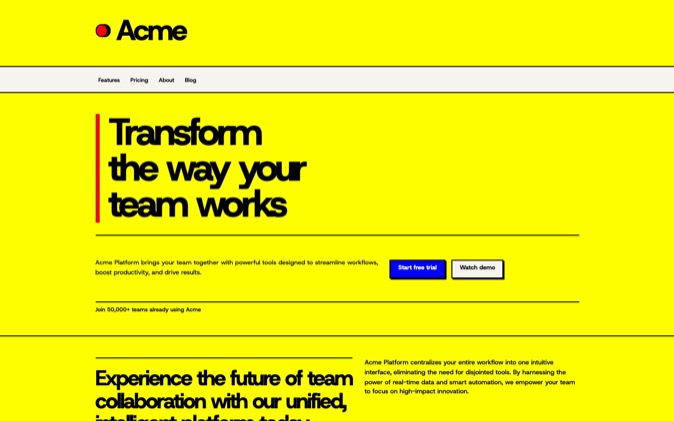
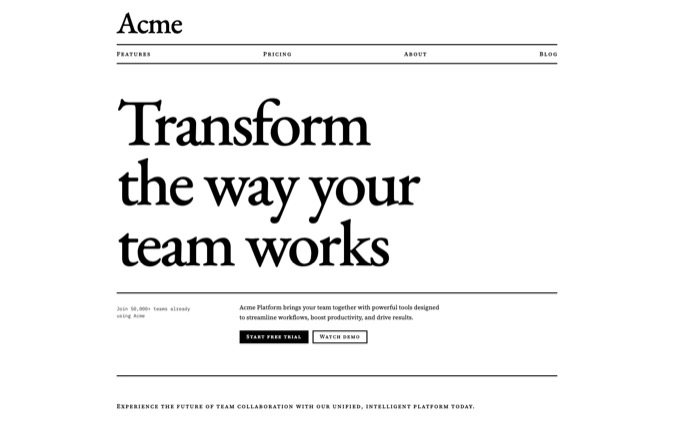
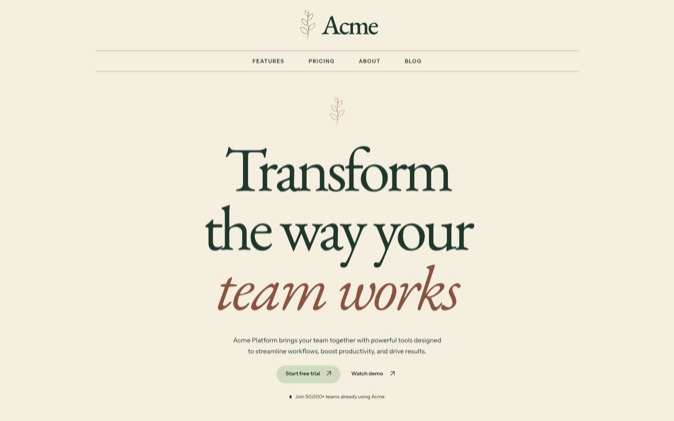
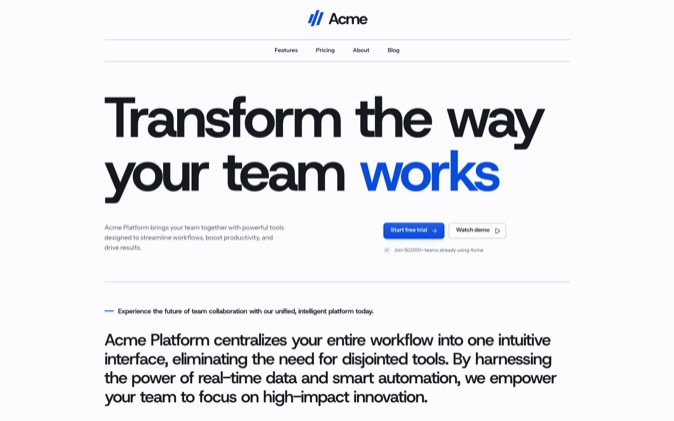
Use DesignPrompts to plan a new layout and look for your existing landing page, then give the prompt to your coding agent with explicit instructions to preserve its content and behaviour. Builder makes the design choices visible before you change the implementation.
Builder does not import an existing website. You reconstruct the page plan with blocks, choose a Preset and pass the resulting prompt to the agent working in your repository.
This workflow uses Relay, a fictional appointment-booking SaaS for independent salons, to illustrate the decisions.
Record what already works
Open your current landing page locally. Identify its exact route and the code that renders it. Keep a recoverable version of the current implementation before asking the agent to change it.
Capture the whole page at desktop and phone widths. Then record the content and behaviour the redesign must preserve.
| Existing part | What to record |
|---|
| Page route | The URL and route entry that render the landing page |
| Primary action | Its label, destination and any handler it calls |
| Forms | Fields, validation, submission path, loading, error and success states |
| Navigation | Links, section anchors and mobile-menu behaviour |
| Product content | Headings, explanations, images and supported claims |
| Shared UI | Components and styles also used outside the landing page |
| Page metadata | Title, description and canonical URL, where present |
For Relay, Book a demo might open an existing form or lead to a booking route. Inspect what your implementation actually does. Preserving the label while replacing its destination would change the product.
You can ask your agent to prepare the inventory before it edits anything:
text
Inspect the existing landing page and identify its exact route and source.
List its sections in order, primary actions, link destinations, forms,
validation and loading, error and success states.

Identify the shared components and styles it uses elsewhere in the app.
Find the project's relevant checks and tell me how to run the page locally.
Do not edit the implementation yet.
Run the relevant existing checks and note any failures already present. That gives the redesign a useful baseline.
Diagnose the page in visible terms
An instruction such as 'make it look less AI-generated' leaves the agent to decide what you dislike. Name the problem you can point to on the page.
The following diagnoses are illustrative. Use a row only if it describes your page.
| If the current page has | Try this design change | Keep stable |
|---|
| A product interface buried below several generic sections | Give the existing image a prominent place in a Split or Stage hero | The image's meaning and supported product explanation |
| Several equally prominent actions | Make Book a demo the primary visual action and give secondary links less emphasis | Every required destination and interaction |
| Repeated feature cards with little hierarchy | Separate the workflow explanation from the feature detail | The existing information |
| Headings and panels with inconsistent spacing | Set page-wide typography and spacing before styling individual blocks | Content and functional controls |
| A mobile layout dominated by a large image | Reconsider image placement and text order at phone width | Access to the same information and actions |
For Relay, the useful design question is whether a salon owner can understand availability, bookings and reminders before being asked to book a demo. A decorative change that leaves those explanations buried does little for that task.
If the copy itself needs new claims or a different message, identify that as a separate content decision. A visual redesign should not silently rewrite approved product facts.
Reconstruct the page plan in Builder
On the Start page, choose the nearest Page template, then select Edit in Builder. SaaS launch is a useful starting point for a software page such as Relay. Use Blank page in the Builder's Template window when an existing page needs a substantially different structure.
Map the content you already have to blocks before choosing decorative details:
| Existing content | A Builder block to consider |
|---|
| Brand and navigation | Site header |
| Product explanation and main image | Hero |
| Capability descriptions | Features |
| Ordered workflow | Process |
| Existing questions and answers | FAQ |
| Existing enquiry form | Contact |
| Final invitation to act | Closing |
| Company and navigation details | Footer |
Use Layers to arrange the blocks in the intended reading order. Use Blocks to add a missing section. Selecting a block opens its controls under Block, including Block variation and Options.
The mapping is a design plan. Adding Contact to the plan does not transfer your existing form fields or submission handler into Builder. The coding agent needs the repository and preservation inventory to carry those across.
Keep every required piece of existing content accounted for. If several sections become one Features block, list which content moves into it. If a section does not fit neatly, retain it in the nearest suitable part of the plan and explain the mapping in the brief.
The Wireframe uses sample content. Judge its hierarchy and proportions while keeping your actual content inventory beside it.
Choose the page-wide look before local styling
Open the Look picker from the toolbar control showing the current Preset name. For a product-focused Relay page, start with Clear Day and inspect the light ground, type hierarchy and space around the interface.
Keep the page plan fixed while judging the look. This makes it easier to decide whether a change in typography, colour or spacing helps the same content.
Then use Style for page-wide changes. Useful controls include Font pairing, Headline size, Page width and Section spacing. Select an individual block when it needs an exception under Block style.
Choose the Preset before making those local exceptions. Applying another Preset resets Block style overrides as well as changing the page-wide look. Undo restores the previous document state.
For more on choosing a direction from your actual material, read how to pick a landing-page design direction.
Select Redesign and describe the preservation requirements
Open Get prompt. Under Build goal, select Redesign. This option asks the agent to apply the design to an existing page while keeping its content, routes and behaviour.
Under Your product, add the product name and a Page brief that names the target route, audience, primary action and section mapping. For the fictional Relay example, the facts remain appointment booking for independent salons, with availability, bookings and reminders. Your real project should supply its own facts.
Under Agent instructions, choose Balanced for Creative freedom and Build directly for Build approach. Approve the first screen gives you an early opportunity to inspect the new direction.
Copy the prompt with Copy prompt. In the same coding-agent session that prepared the inventory, include this request:
text
Redesign only the landing-page route identified in our inventory,
using the attached DesignPrompts prompt and the section mapping we agreed.

Read the project's instructions and design contract before editing.
Preserve the existing product content, routes, link destinations,
form fields, validation, handlers, and loading, error and success states.
Preserve the page's existing metadata unless a separate change is requested.

Map the existing content into the planned sections. Account for content
that does not fit directly; do not silently drop it or invent replacements.

Keep the current stack. Reuse working controls and behaviour.
Before changing a shared component or style, identify its other consumers
and keep the redesign scoped to this page where possible.

Show the proposed section mapping and rendered first screen for approval.
After approval, finish the page and run the relevant project checks.
Compare the result at 1440 px and 390 px with the baseline.
Exercise the same links, navigation and form states recorded before editing.

Report visual changes separately from behaviour changes.
Name anything you could not verify. Do not deploy.
The Redesign setting is useful because the prompt explicitly carries preservation requirements. It still depends on the agent applying them correctly in your code.
Review appearance and behaviour separately
First inspect the design. Compare the result with your chosen look and page plan. Read the entire page, including its mobile version.
Check that the hierarchy now gives the important information room. Review heading wraps, content width, image crops and the relationship between sections. Confirm that all required content from the inventory is still present.
Then check behaviour against the baseline:
- Follow the primary action and compare its destination or handler.
- Exercise the mobile navigation and section links.
- Check the form's validation, loading, error and success states using the project's existing test setup.
- Check keyboard focus and access to controls.
- Inspect another affected screen if the change touched shared components or styles.
- Review the diff for changes outside the intended route and explain any that were necessary.
A passing build establishes that the project builds. It does not establish that Book a demo still completes the same journey.
If the form works but its new presentation is difficult to read on a phone, issue a targeted correction:
text
Adjust only the demo form's mobile layout.
Give the fields and validation messages enough room at 390 px.
Keep the field names, validation rules, submit handler and existing states.
Show the revised invalid and success states and rerun the affected checks.
Use this request only when that problem exists. For recurring visual inconsistencies, the guide to keeping a coding agent on your design explains how to retain the decisions in the project.
DesignPrompts is useful here because you can settle the arrangement and visual direction in an editable plan, then hand those choices to the agent already working on your app. Your existing implementation supplies the content and behaviour the redesign must retain.
Open the Builder and reconstruct the page you want to redesign.