Use DesignPrompts to choose your SaaS landing page's structure and visual direction, then give its prompt to Claude Code to implement in your project. The free Start and Builder let you inspect the design choices before the agent writes the page. Neither requires sign-up.
This tutorial uses Relay, an explicitly fictional appointment-booking SaaS for independent salons. Relay lets a salon publish availability, accept bookings and send reminders. Its primary action is Book a demo.
You will prepare a page plan, add Relay's brief, copy the design prompt and give Claude a concrete implementation request. The exercise ends with checks you can run on your own build.
Prepare the project and the product facts
Have a web project you can run locally and an existing Claude Code setup. Know how to start the project and run its usual checks. Choose an unused local route for the exercise, such as /relay-preview.
DesignPrompts supplies design instructions. Claude Code writes the implementation in your project's stack. Builder does not export application code or deploy the result.
Keep Relay's facts narrow:
| Input | Value for this exercise |
|---|
| Product | Relay, a fictional appointment-booking SaaS |
| Audience | Independent salons |
| Capabilities | Publish availability, accept bookings, send reminders |
| Main action | Book a demo |
| Voice | Plain, welcoming and specific about the product |
| Product visual | A static booking-interface mockup labelled Example data |
| Demo destination | A local demonstration form on the page |
The form in this exercise sends nothing. It lets you check the page's interaction without inventing a booking service or connecting an API.
Choose SaaS launch and Clear Day
Open the DesignPrompts Start page.
- Under Page template, choose SaaS launch.
- Under Look, choose Clear Day. The Light filter can help you find it.
- Inspect the Desktop and Mobile previews.
- Select Edit in Builder.
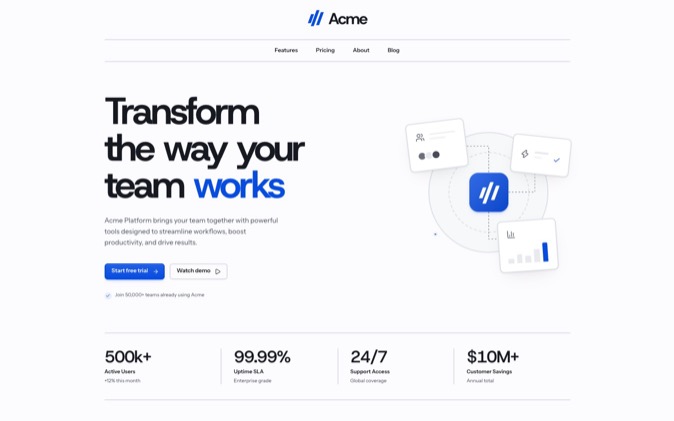
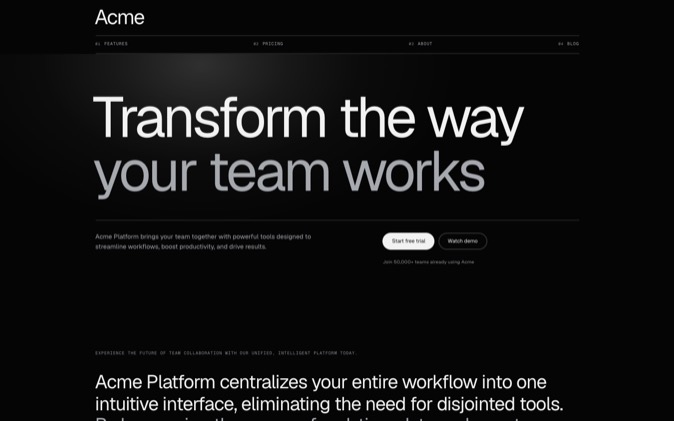
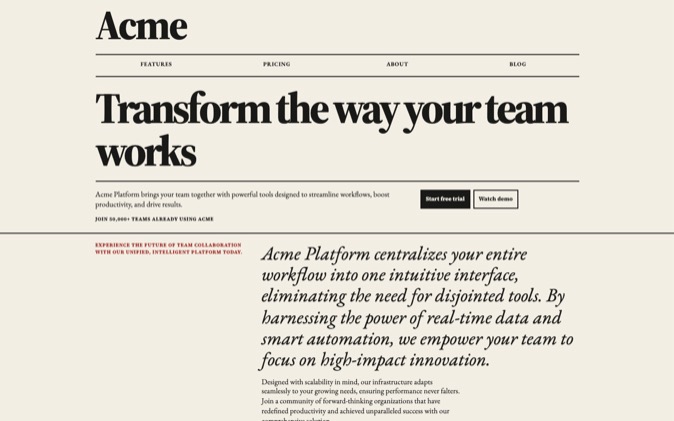
SaaS launch gives you a product-led starting structure. Clear Day supplies a light background, sans-serif typography and restrained colour. That combination makes the booking interface a useful focal point for this exercise.
Choose the template for the product you are selling. Relay sells software to salons; its page needs to explain the software before it resembles a salon's own website.
The preview is a Wireframe. Its sample names, figures and copy help you judge the arrangement. They are not facts about Relay, and entering a product brief does not replace every sample sentence in the preview.
Shape the page around the facts you have
Open Layers to see the blocks in page order. SaaS launch includes a Logo cloud, Testimonials and Pricing. Remove those three blocks for Relay because the example has no customer endorsements or commercial terms.
Select the Hero. In the Block panel, keep Split under Block variation. Under Options, turn off Key numbers, Trust caption and Secondary action. The hero can now focus on one explanation, one product visual and Book a demo.
Under the Hero's Block style, set Image type to UI mockups and Image framing to Framed. This describes the illustration you want the agent to build. It does not create a functioning booking interface.
Move Process above Features by dragging its row in Layers. On a narrow editor, the row's move-up and move-down buttons provide the same operation. Relay's reader can then understand the booking sequence before reading about each capability.
Keep Features on Alternating with Rows set to 3. Set the FAQ's Questions to 4. Open Blocks, search for Contact, add it and move it before Closing. This provides a place for the local demo form.
Use this final plan:
| Block | What it should communicate |
|---|
| Site header | Relay, section links and Book a demo |
| Hero | Booking software for independent salons, beside an example interface |
| Process | Publish availability, accept a booking, send a reminder |
| Features | One explanation for each of those capabilities |
| FAQ | Audience, availability, bookings and reminders |
| Contact | The clearly labelled demonstration form |
| Closing | Repeat Book a demo |
| Footer | Relay's fictional-example label and useful section links |
Turn off Secondary action in Closing as well. Every Book a demo link should reach the Contact section.
For the FAQ, stay within the supplied facts. Explain who Relay serves, that salons publish availability, that Relay accepts bookings and that it sends reminders. Do not add an answer about reminder channels, integrations or pricing.
Add the brief and choose how Claude should build
Select Get prompt. Under Your product, enter Relay in Product and paste this into Page brief:
text
Relay is a fictional appointment-booking SaaS for independent salons.
It lets a salon publish availability, accept bookings and send reminders.

Use the headline: Booking software for independent salons.
Explain the product in plain, welcoming language.
The primary action is Book a demo.

Show a static booking-interface mockup labelled Example data.
Use only the three capabilities above. Do not invent customers,
testimonials, prices, savings, integrations or reminder channels.

The Contact section is a local demonstration form with name, email
and message fields. Label it: Demo form. No request will be sent.
Every Book a demo link leads to this section, with the anchor demo.
On valid submission, show: Demo only. No request was sent.
Do not send or store the submitted information.

Keep the footer explicit that Relay is a fictional example.
Use section links where useful; invent no contact details or social profiles.
Choose these prompt settings:
| Control | Selection | Reason for this tutorial |
|---|
| Build goal | New page | You are creating a separate local page |
| Approval checkpoints | Approve the first screen | Review the direction before the rest of the implementation |
| Design method | DesignPrompts Harness | Include the design method in the copied prompt |
| Creative freedom | Balanced | Keep the build closer to your selected arrangement |
| Build approach | Build directly | Work in the existing project from the start |
The last four controls sit under Agent instructions. Leave Extra skills off for this exercise.
These choices instruct Claude how to work. They do not guarantee that it follows every instruction or reproduces the preview exactly.
Copy the prompt into Claude Code
The prompt includes your product brief, build instructions, visual choices and ordered sections. Its starting values give the agent colours, sizes and spacing to work from. When the page's reference link is ready, the prompt also points to its Wireframe preview.
Select Copy prompt, then open Claude Code in your target project. Paste the complete prompt with this implementation request:
text
Implement the attached DesignPrompts design for the fictional Relay example.

Build a local page at /relay-preview. If that route is already occupied,
identify the conflict before editing it.

First read the project's instructions and any existing design contract.
Identify the routing, styling, shared controls and verification commands.
Reuse the project's stack and conventions.

Use the page plan and brief in the DesignPrompts prompt. Keep every product
claim within the Relay facts. Label the interface mockup Example data.

Wire every Book a demo action to the Contact section at #demo.
The demo form must validate its required fields locally, send no network
request and show: Demo only. No request was sent.

Show the page plan and rendered first screen for approval before continuing.
If you cannot render or inspect it, say so and provide the local route
and instructions for me to review it.

After approval, finish the page. Run the relevant project checks and inspect
the full page at 1440 px and 390 px. Check navigation, keyboard focus,
heading wraps, image crops and the local form's invalid and valid states.
Report what you checked and anything you could not check.
Do not deploy the page.
For later sessions, put a short instruction in the project's CLAUDE.md directing Claude to the design material you retained. Claude Code supports project instructions there; keep the reference specific and confirm that the agent has read the relevant files. See the official Claude Code memory guide.
Review the first screen before continuing
At the approval checkpoint, inspect the actual page Claude renders.
Can you tell that Relay serves independent salons? Does Book a demo stand out? Does the product mockup explain booking availability? Is its example-data label visible?
Compare the composition with your selected direction. Check the relationship between the headline and image, the reading width and the amount of space around the main action. Balanced creative freedom still leaves implementation decisions to the agent.
If the first screen is unclear, give one concrete correction before approving the rest. For example, if the booking mockup is too small to explain anything:
text
Give the booking mockup more room in the hero and keep its labels readable.
Preserve the headline, primary action and Clear Day direction.
At phone width, put the mockup below the copy and keep it inside the page.
Show the revised first screen before continuing.
Check the finished page and its behaviour
Review the full page at desktop and phone widths, including the sections below the hero.
- Follow each header link and each Book a demo action. They should reach the intended section.
- Check that the Process order and Features copy use the three supplied capabilities.
- Read the page for sample prices, customer names or claims that slipped in from the template.
- Tab through navigation and the form. Focus should remain visible, and labels should identify their fields.
- Submit an incomplete form, then a valid demonstration. Confirm the local message appears and no request is sent.
- Inspect heading wraps, horizontal overflow, image crops and the footer at phone width.
- Run the project's relevant checks and keep their results separate from the visual review.
If a section needs correction, name the section, the visible problem and what must stay. Recheck the affected widths and interactions after the change.
DesignPrompts gives you a page plan and visual decisions to review against. Claude Code turns those instructions into editable code in your project. For the broader handoff across agents, see how to give a coding agent a landing page design.
Open the Builder to shape your SaaS page and copy the prompt.