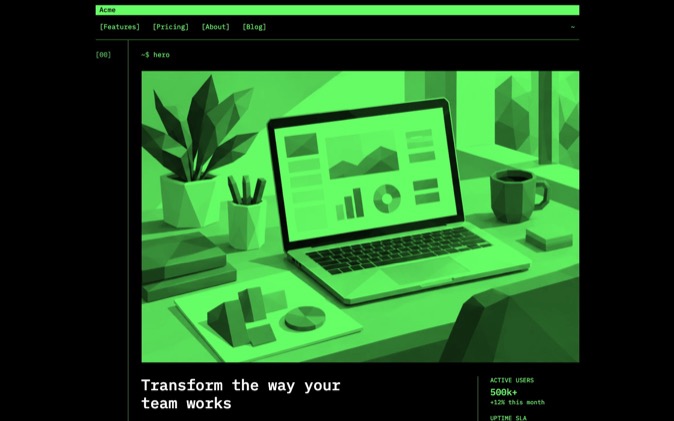
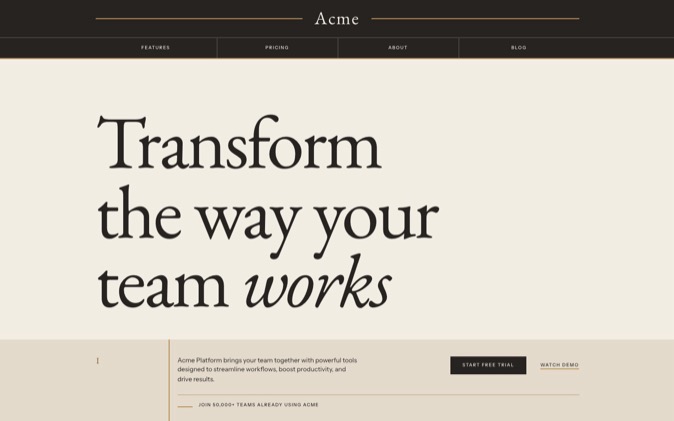
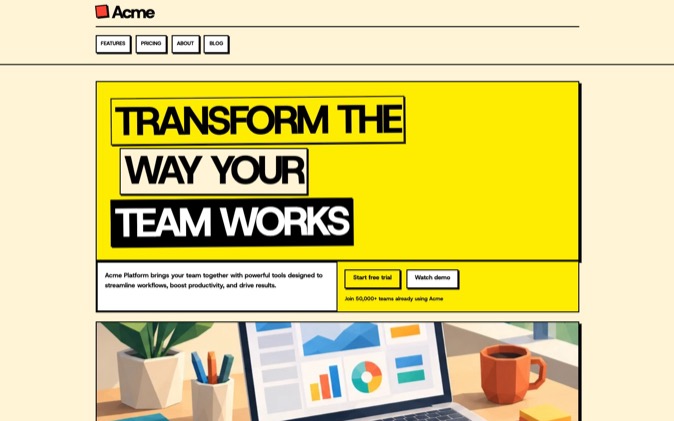
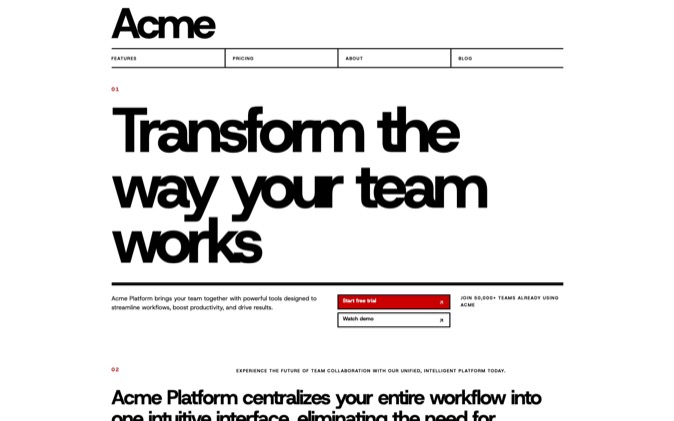
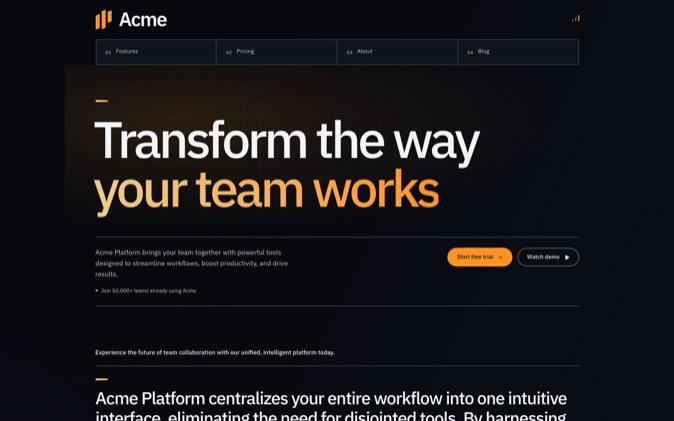
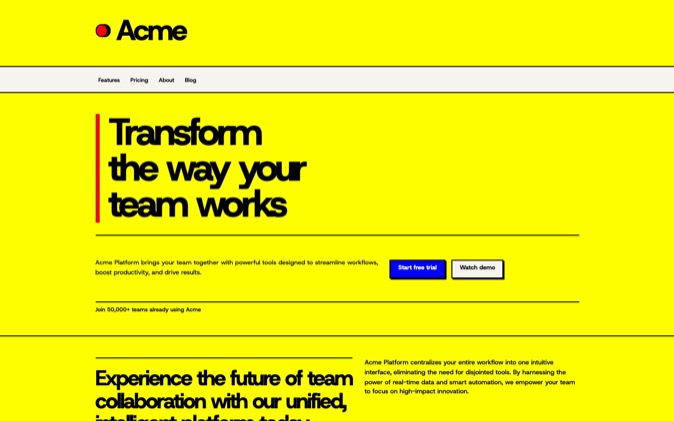
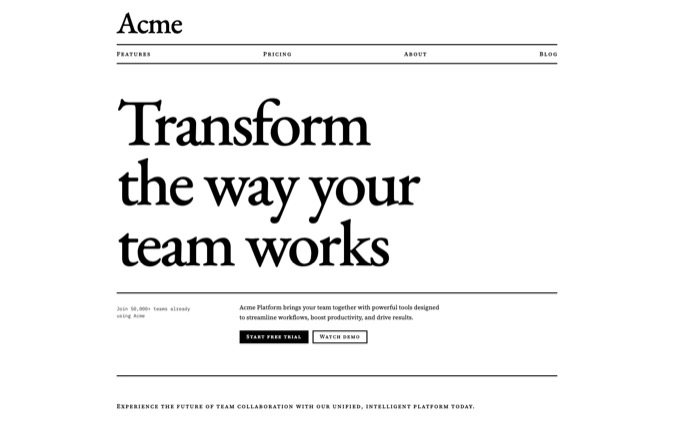
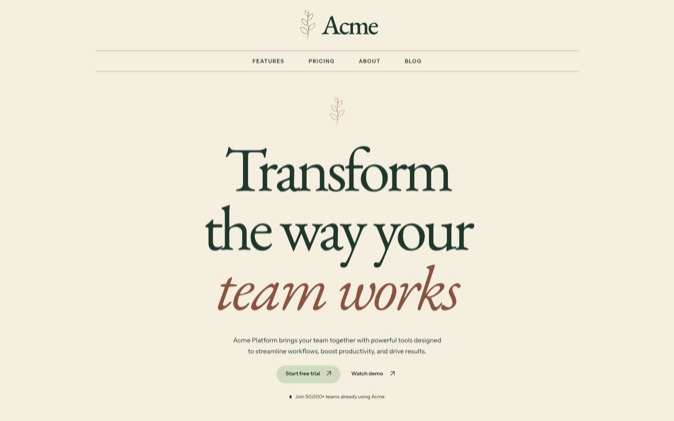
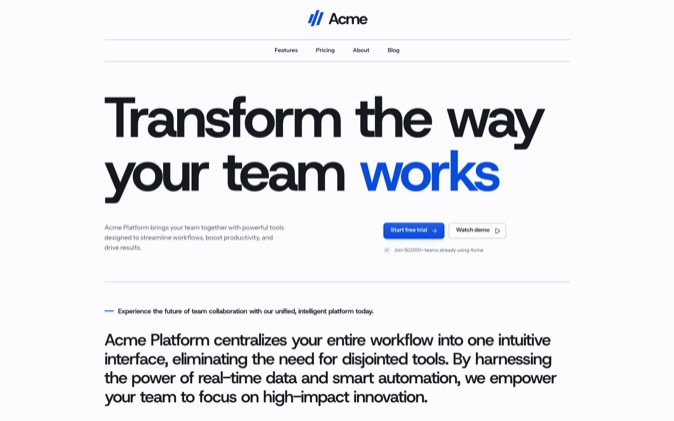
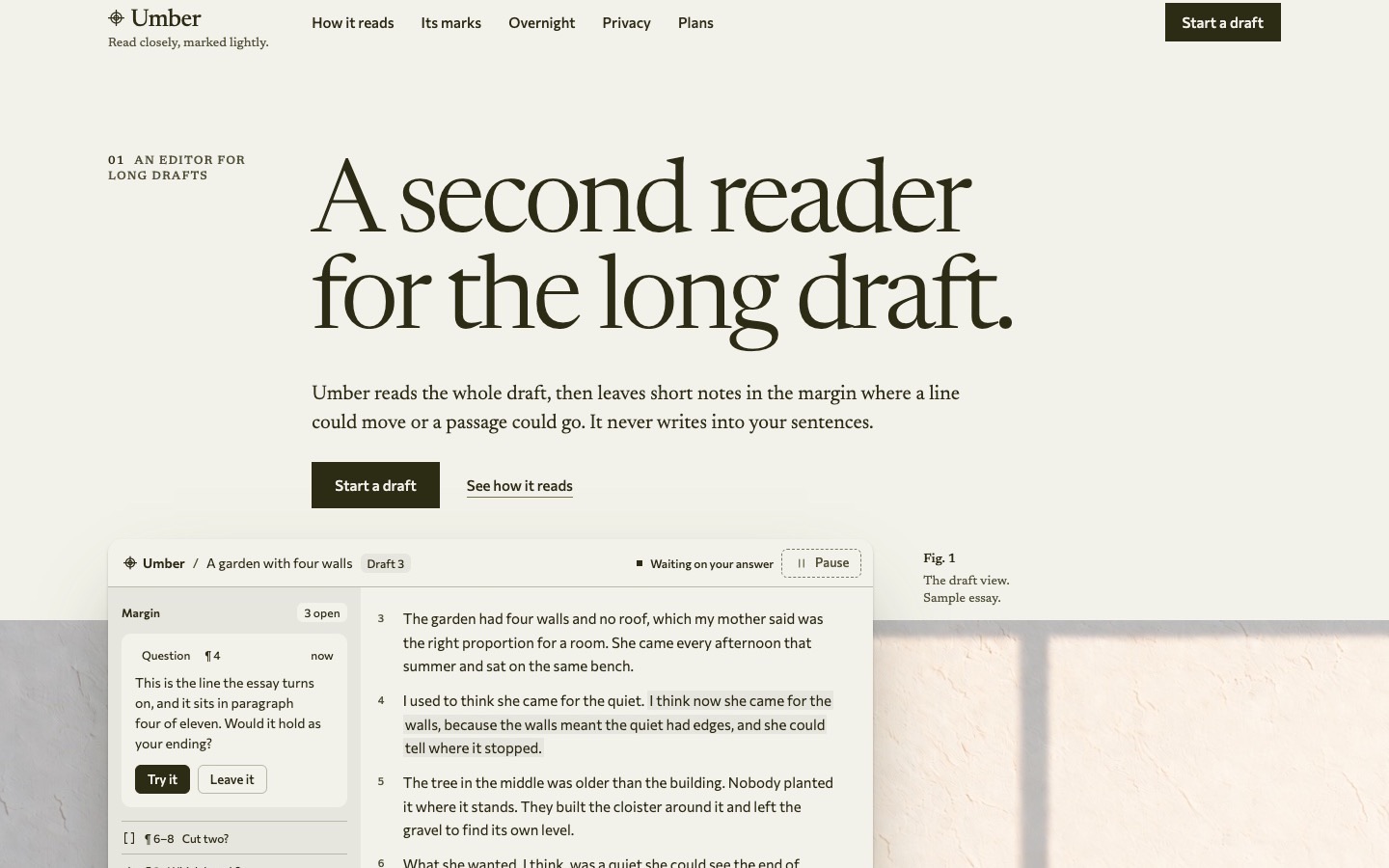
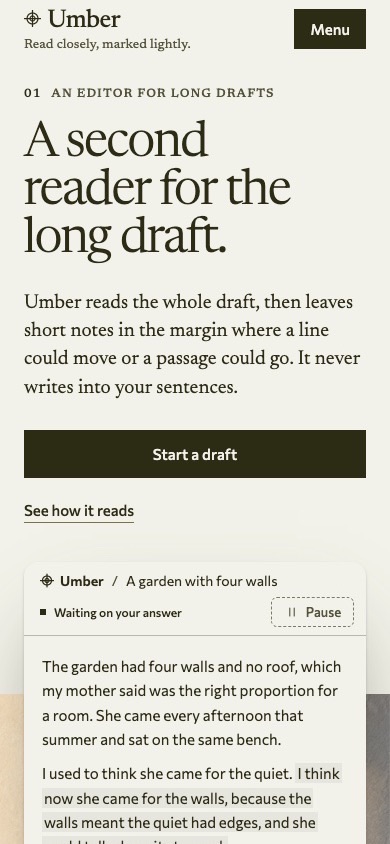
DesignPrompts' free Start has a Developer tool template for a page built around installation, comparison, documentation and release notes. Choose it, select a Preset, then edit the page around the evidence your tool actually has. Copy the resulting prompt to give your coding agent a visual direction and a concrete content plan.
For a CLI or API product, begin with the developer's evaluation task: understand the input, inspect the output and find the first useful action. The template gives those decisions a visible starting point before your agent writes the page.
Write the technical brief before choosing sections
This tutorial uses Tracefold, an explicitly fictional CLI. In the example specification, it checks a JSON payload against a local schema and reports the field that needs attention. It is a page-design exercise, not a released package.
The proposed page has one primary action: Read the quickstart. That action leads to an explanation on the same page, so the exercise does not require a fabricated download or documentation site.
Use this brief:
text
Product: Tracefold, a fictional CLI for checking JSON payloads against a local schema.
Audience: solo developers testing data before sending it to an API.
Job: explain how an input file and a schema produce a useful field-level diagnostic.
Headline: Check an API payload before you send it.
Description: Tracefold compares a JSON file with a local schema and shows which fields need attention.
Primary action: Read the quickstart, linking to an in-page section with the id quickstart.
Demonstration: one illustrative input and one illustrative diagnostic, labelled as fictional.
Tone: direct, technical and readable.
Scope: a landing-page prototype. Do not implement the CLI or imply that it is available to install.
Evidence: no customers, adoption figures, performance results, integrations or pricing are supplied.
For your own product, replace this specification with facts from the tool and its documentation. Include its real command, supported environments, installation source and any limits a developer needs to know.
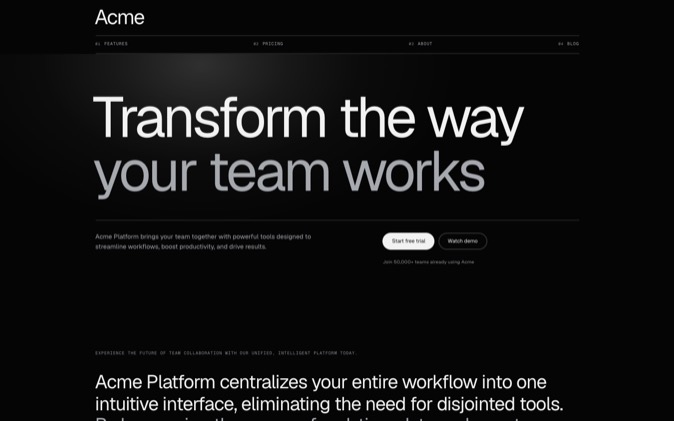
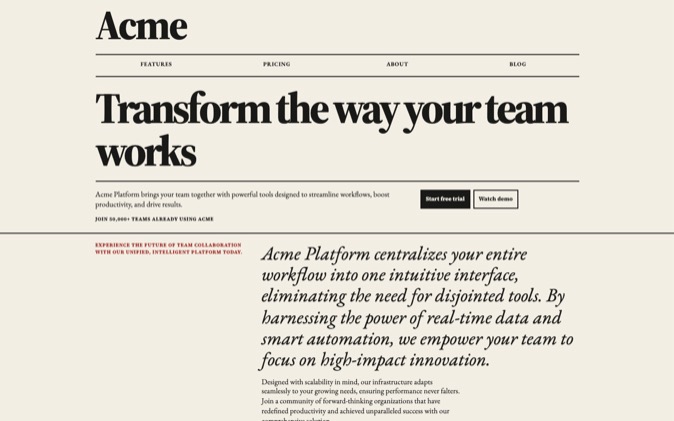
On the Start page, choose Developer tool and the Terminal Preset. Terminal currently pairs serif headlines with monospaced text on a dark ground. That distinction gives the page's explanation and its technical examples different visual roles.
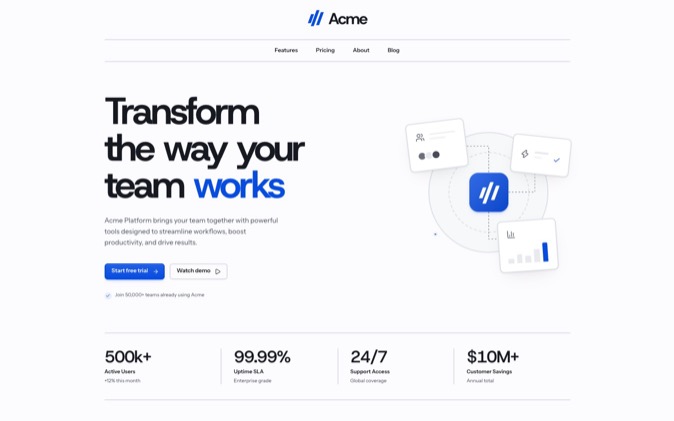
The template starts with these Blocks:
| Starting Block | What it is useful for |
|---|
| Site header, Masthead | Documentation and product navigation |
| Hero, Signature | The product explanation, actions and install line |
| Comparison, Split | A supported comparison between two approaches |
| Logo cloud, Grid | Genuine adoption evidence |
| Features, Alternating | Product explanations beside examples |
| Download, Installer | A real installation command and supported downloads |
| Blog index, Feature | Actual documentation articles or release notes |
| Closing, Card | The next action after the explanation |
| Footer, Signature | Supporting navigation |
Inspect the Desktop and Mobile previews, then choose Edit in Builder.
The preview contains sample words, commands, logos and figures. They demonstrate the template's arrangement. Do not execute its sample install command or carry its claims into your product page.
A Preset controls the Builder's look. Choosing Terminal here does not install the separate Terminal LandingKit style.
Make the template fit the evidence
Tracefold has a small fictional specification and no released software. Edit the starting plan accordingly:
- Keep the header and hero. In the hero, turn off Repeat the install command and Key numbers. Keep Trust caption off.
- Remove the logo cloud. There are no customers to show.
- Remove the comparison. The brief supplies no verified comparison with another tool or workflow.
- Keep Features and use two alternating rows: one for the input and one for the diagnostic.
- Remove Download. Tracefold has no published installer.
- Remove the Blog index. There are no real articles or releases to link.
- Add a Process Block after the examples for the quickstart explanation.
- Keep the closing and footer, with links to the example and quickstart sections.
The resulting page is shorter because the product brief is narrower. A real released CLI can retain the installer. A product with documented tradeoffs can retain the comparison. Choose those sections when you can supply their content.
The useful part of DesignPrompts here is the visible structure. You can decide what belongs on the page and how much room it needs before asking an agent to implement it.
A command alone tells a developer little about what happens next. Pair it with the file it reads and the result it produces.
For Tracefold, use this fictional input:
json
{
  "booking": {
    "service": "Haircut"
  }
}
In the example specification, the schema requires a booking.start field. The page can show the following usage and diagnostic as an illustration:
text
Fictional usage example. This command is not supplied to run.

tracefold check booking.json --schema booking.schema.json

Illustrative diagnostic:
booking.start: required field is missing
The explanation under it should state what the reader can infer: the sample payload lacks a required field, and the proposed tool reports that field's path. This is a designed example, not output from an executed program.
For a real tool, replace the illustration with an example you have run. Keep the exact input, command, output and relevant version together. If a screenshot shows the terminal, provide the command and diagnostic as selectable text too.
Choose the proof that answers the question
| Developer's question | Useful material to show |
|---|
| What do I give the tool? | A minimal input file or request |
| What does it return? | Actual output with an explanation |
| What happens when input is wrong? | A real diagnostic and the correction |
| Can I use it in my environment? | Verified runtime, platform and version requirements |
| Where do I begin? | The real quickstart or installation instructions |
| Why choose this approach? | A specific supported difference, with its limits |
For an API product, use a documented request and response in place of the CLI example. Link to the actual authentication and error documentation where those details affect first use. Keep credentials out of the example.
You do not need an adoption number to explain a useful tool. A reproducible example lets the reader inspect what it does.
Give each section one job
Use the edited plan to organize the page's content:
| Section | Proposed Tracefold content | What the visitor learns |
|---|
| Hero | "Check an API payload before you send it." | The job and intended user |
| First example | The small JSON payload | What goes into the tool |
| Second example | The labelled fictional diagnostic | What comes back and how to read it |
| Quickstart | Select a payload, select its schema, inspect the reported field | The intended workflow |
| Closing | Read the quickstart | The next available action |
| Footer | Links to the example and quickstart | Where to return for details |
Keep code lines readable at phone width. Let a code block scroll horizontally when necessary, without making the whole page overflow. Keep the explanation beside the example so the visitor can understand the result without decoding a decorative terminal animation.
For the fictional page, the quickstart explains the intended workflow. For a released product, it should lead to an operation the reader can actually perform.
Copy the prompt and hand it to your agent
Open the prompt and enter the product name in Product. Paste the specification, content plan and fictional-example limits into Page brief.
Choose New page for a standalone implementation, or Add to a site when the page belongs in an existing project. For this exercise, Build directly, Balanced, and Approve the first screen provide a useful sequence: implement in the project, keep the selected direction, and review the opening before the rest.
Choose Copy prompt. The output carries your brief, the look and the ordered sections, together with the selected agent instructions. Builder supplies that prompt; your coding agent builds the website in your project.
Add this request:
text
Build the Tracefold landing-page prototype from the attached DesignPrompts prompt.
Read this project's stack and design rules before implementation.
Use the supplied headline, content plan and in-page quickstart destination.
Render the fictional JSON example and diagnostic as selectable text.
Keep their fictional labels visible beside the examples.
Do not create an executable CLI, an install command, customer evidence or unsupported compatibility claims.
Use Read the quickstart as the primary action and make it reach the quickstart section.
Show the first screen for review before completing the page.
Run the project's checks, inspect desktop and phone widths, and test the navigation and keyboard focus.
Use this request alongside the prompt you copy from Builder. The agent handoff guide explains how to keep design instructions available in your project.
Review the page as a developer evaluating the tool
Read the result from the opening through the quickstart. You should be able to identify the input, operation, output and next action without relying on the template's sample story.
Check the page against those requirements:
- The headline describes the task the tool performs.
- Code examples remain readable and selectable at desktop and phone widths.
- The explanation identifies what each example demonstrates.
- Every command is either verified for the real product or visibly labelled as an illustration.
- Documentation, source and download links appear only when their destinations exist.
- Navigation and the primary action reach the intended section or page.
- Customer, compatibility and performance claims have supporting evidence.
For Tracefold, success is a clear fictional page prototype. For your released tool, substitute verified examples and real destinations before publication.
Start a developer-tool page with the Developer tool template, choose its look, and give your coding agent a plan built around what your tool actually does.