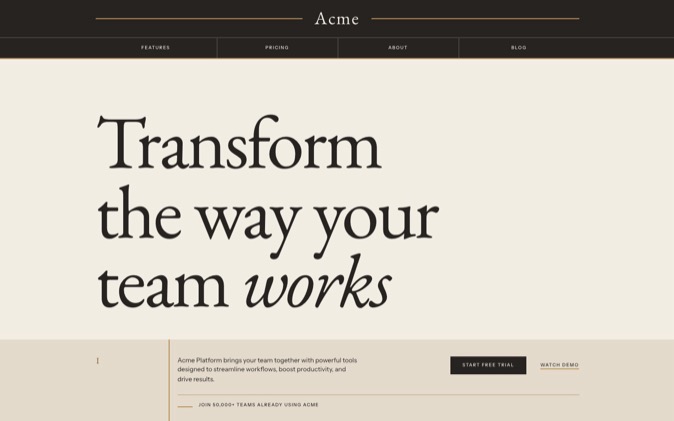
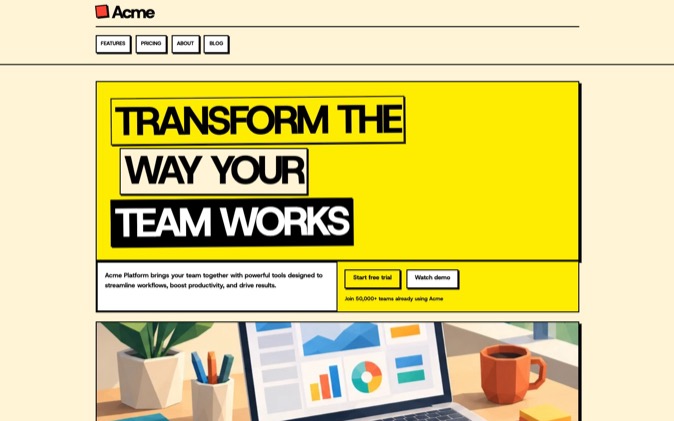
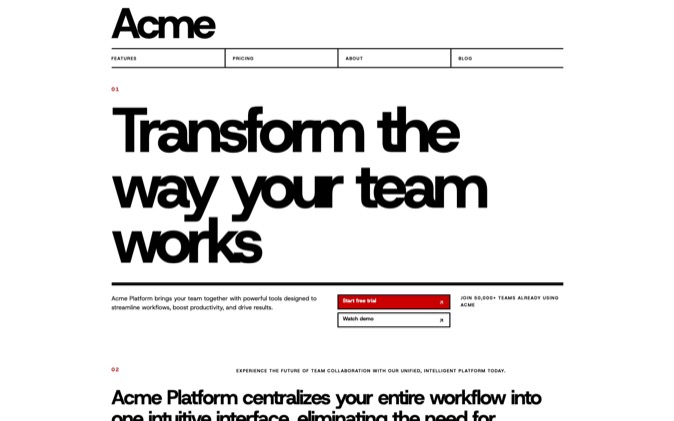
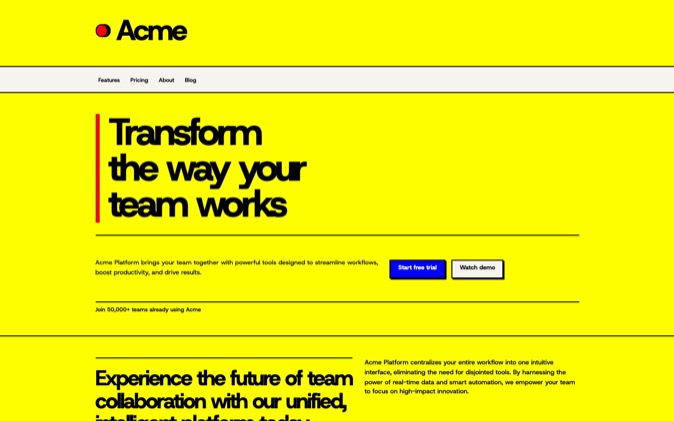
DesignPrompts 3.0 gives you a visual way to plan a landing page before your coding agent builds it. On the free Start page, choose a page template and a Preset, inspect the preview, then get the prompt or open Builder to refine the page. Both Start and Builder work without sign-up.
You choose the structure and visual direction. DesignPrompts puts those decisions into instructions your agent can use in your project.
Start with the page you need
Start combines two choices that you can judge together.
The page template supplies a starting structure. SaaS launch gives a software product room for its interface, features and offer. Developer tool makes space for technical explanation and an install command. Shop starts with products. The right choice follows what your visitor needs to understand and do.
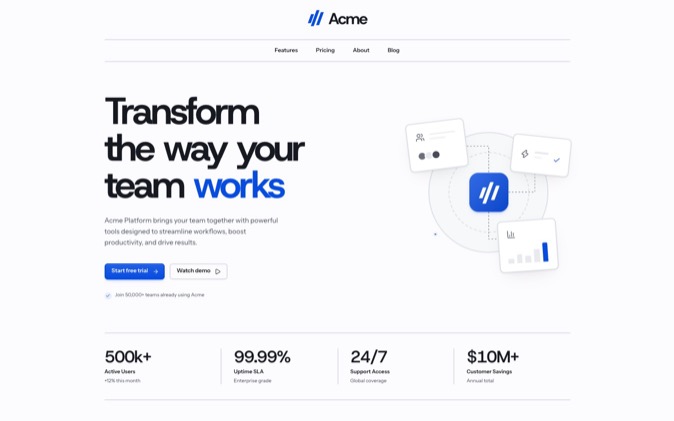
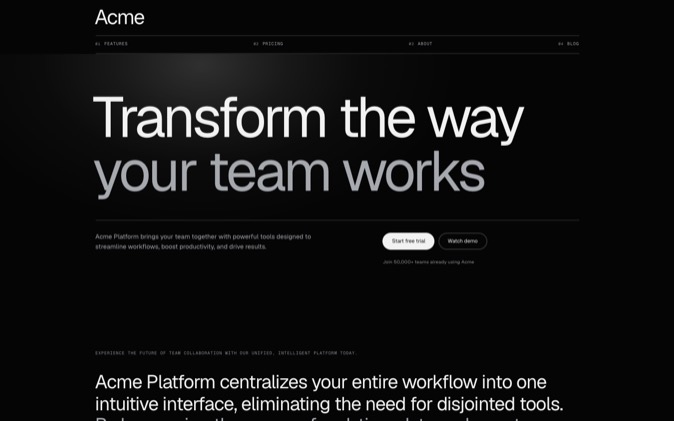
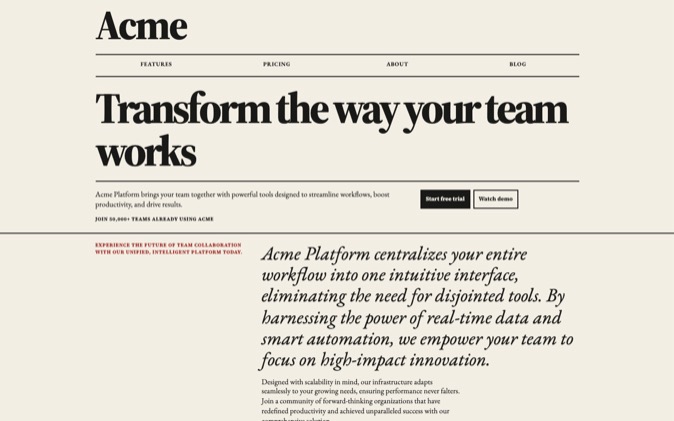
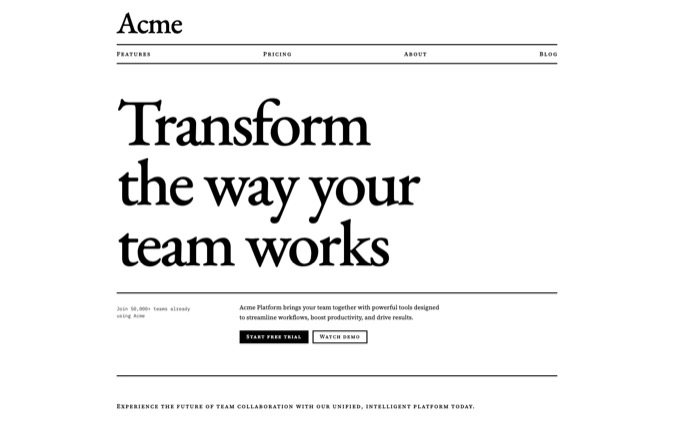
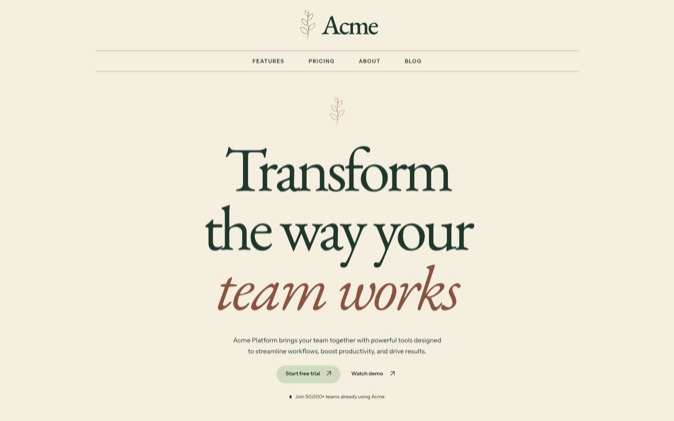
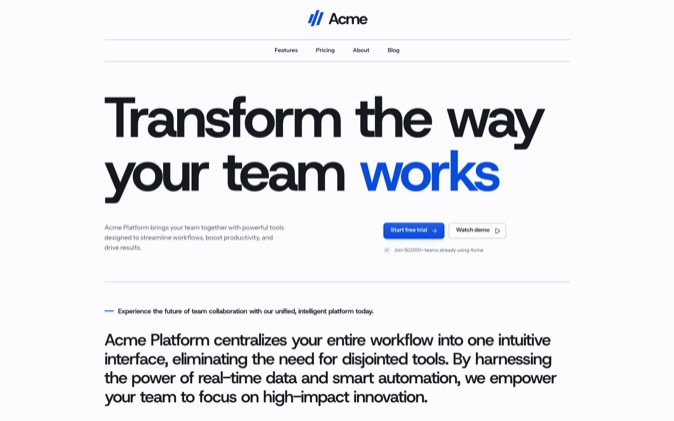
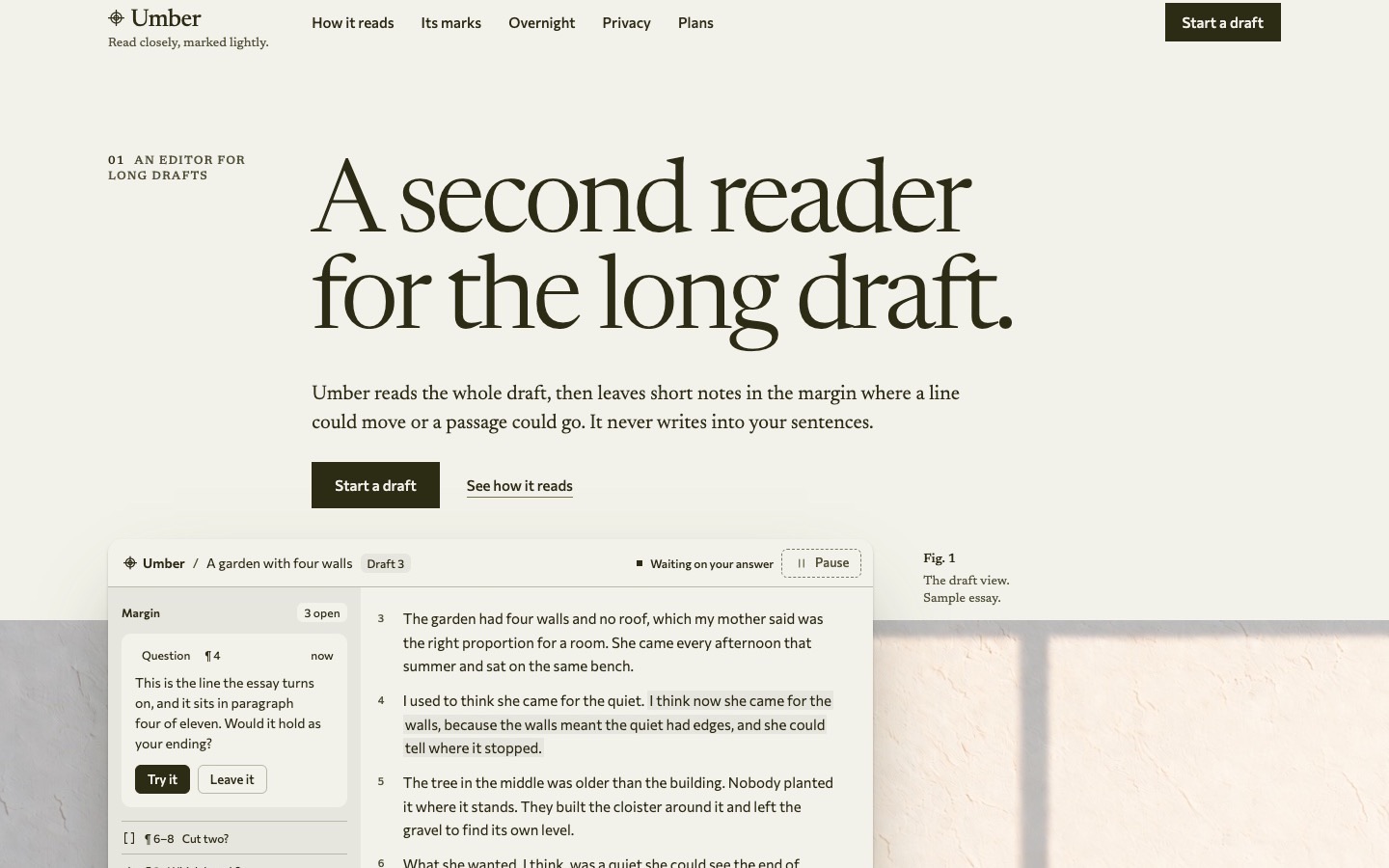
A Preset supplies the look: typography, colour, spacing, shapes and imagery treatment. Keep the template selected while comparing looks, then switch between Desktop and Mobile to inspect the wireframe.
That separation is useful when you know what your page needs to say but have not settled how it should look. You can compare visual choices on the same structure before asking your agent to implement one.
Select Get prompt when the starting page fits. Choose Edit in Builder when you want to change it.
Shape the page in Builder
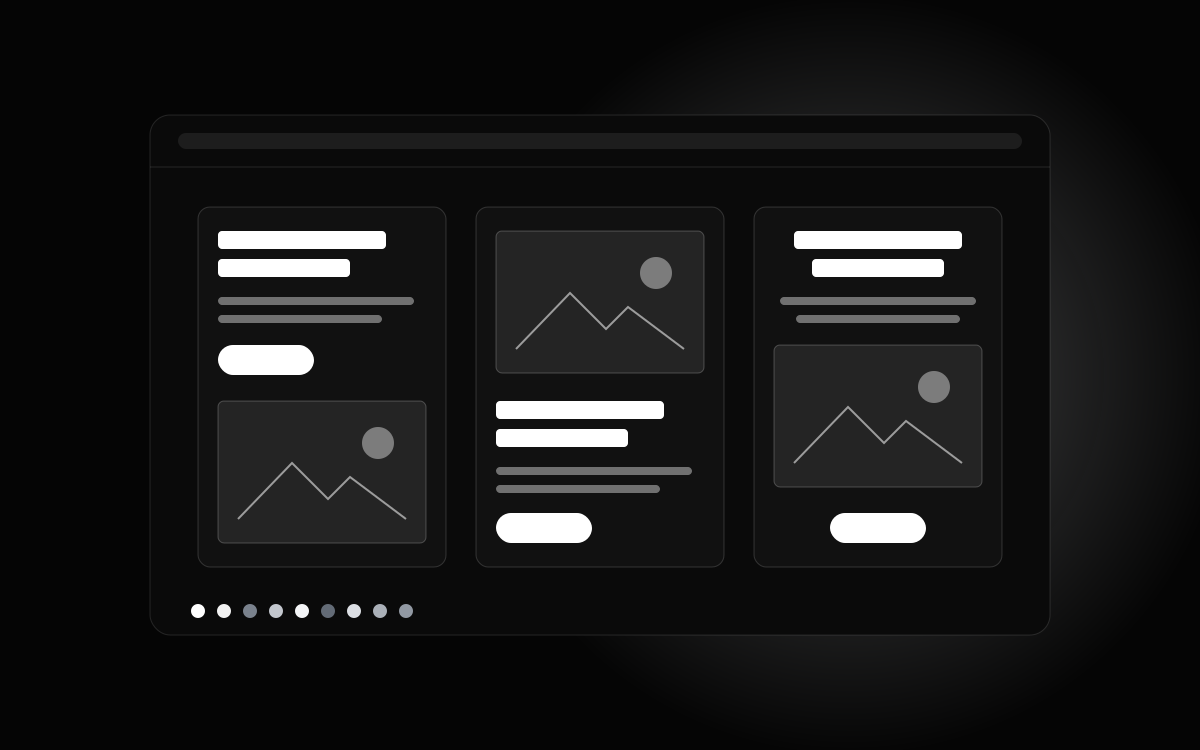
Builder lets you add, remove and rearrange blocks, choose their layouts and options, and adjust the look. A template gives you something concrete to edit; your actual content decides what stays.
Consider Relay, a fictional appointment-booking SaaS for independent salons. It lets a salon publish availability, accept bookings and send reminders. Its landing page asks visitors to Book a demo.
SaaS launch is a useful starting template because the page sells software to a salon owner. The product interface and its booking workflow need room in the page.
For this brief, keep the hero, feature explanation, process, useful questions and closing action. Remove the template's logo cloud, testimonials and pricing until you have facts to put there. Turn off hero numbers and trust captions that you cannot support. Use a clearly labelled placeholder wherever a product screenshot is still missing.
These edits give your agent a page plan that fits Relay's available material. They also give you something specific to review before implementation begins.
Copy a prompt that carries your choices
The prompt combines the page you shaped with the product information you supply.
| Input | What it gives your coding agent |
|---|
| Page plan | Sections in order, their layouts and selected options |
| Look | Typography, colour, spacing, shapes and imagery instructions |
| Product and Page brief | What the product does, who it serves, the main action and required content |
| Agent instructions | The chosen design method, build approach, creative freedom and approval checkpoints |
For Relay, the Page brief should name the salon audience, the three supplied capabilities and Book a demo. It should also identify missing assets and any existing routes or behaviour the agent must preserve.
Use Copy prompt, then give the prompt to your coding agent in the target project with your real copy and assets. The agent writes the implementation there. Builder's wireframe helps you choose and communicate the design; you still review the resulting page and test its actions.
The existing agent handoff guide explains how to carry design instructions into a coding project.
What changed for returning visitors
The free workflow now centres on a page you can shape:
- The homepage is Start, where a template and a Preset combine in a preview.
- Builder is the editor for refining that page's blocks and look before copying its prompt.
- The style pages remain visual references for their LandingKit packs. Start and Builder provide the prompt workflow.
- The component catalogue is now called LandingKit. Its role is still to supply working React files in a chosen style.
If you previously browsed the Prompt Explorer for a direction, begin at Start. Choose the structure as well as the look, then carry both into the prompt.
Start with working code when the task calls for it
The free Builder is useful when you want to choose the page and have your agent implement it in your project. LandingKit, included in Pro, supplies editable React and Tailwind components with their visual design already applied.
The Premium Gallery offers complete Systems with a finished landing page, source, assets, design rules, prompts and agent skills. These are separate starting points. Selecting a Builder Preset does not select or install a LandingKit pack.
For your next landing page, begin with the structure your content needs and compare the looks on it. Open Start to make those choices and get your prompt, free with no sign-up.